Clusters
Clusters group multiple Directors together for high availability. When one Director fails, the remaining Directors automatically take over its workload. Agents and Devices connect to the cluster as a whole, ensuring continuous operation as long as at least one Director remains healthy.
Provider → Device → Preprocessing → Pipeline → Postprocessing → Target → Consumer
Cluster (groups Directors for high availability and automatic failover)
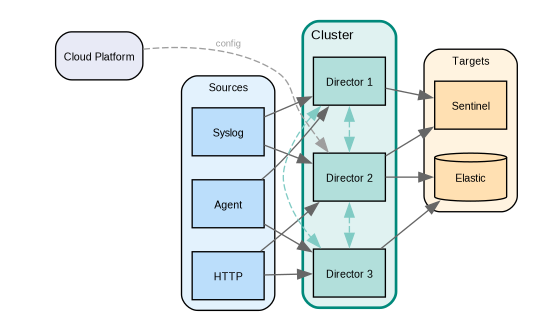
Once a Director is added to a cluster, it cannot be individually modified, updated, or removed. All configuration changes must be made at the cluster level. The only way to release a Director from a cluster is to delete the entire cluster, after which the Director returns to standalone status.
Access
The Directors page displays two tabs: Directors and Clusters. Click the Clusters tab to manage cluster configurations. The Clusters tab requires CLUSTER_READ permission.
Overview
The Clusters table displays all configured clusters with the following columns:
| Column | Description |
|---|---|
| Cluster name | Cluster identifier |
| Mode | Management type (Managed or Self-managed) |
| Director count | Number of Directors in the cluster |
| Log stream | Log stream indicator |
| Cluster status | Operational state (Enabled/Disabled) |
| Director connection status | Connection state of member Directors |
| Actions | Menu for cluster operations |
Table Controls:
Filter clusters using Search clusters (by name) and Status dropdown (All, Enabled, Disabled). The
Create Cluster Wizard
The cluster creation process guides you through a 5-step wizard:
General Settings
Basic Configuration:
- Cluster name - Unique identifier for the cluster
- Port - Communication port for cluster coordination (default: 8081)
- Mode - Management approach, selected under
Choose mode :- Managed: VirtualMetric manages cluster infrastructure
- Self-managed: User controls cluster deployment and configuration. A self-managed cluster is always on the Manual update policy — see Manual Update
Director Selection:
Select Directors to include in the cluster. Requirements:
- Minimum 3 Directors, maximum 15
- Must be an odd number (3, 5, 7...) for quorum
- Directors must be stand-alone and unconfigured. Directors that cannot be added: Directors already assigned to another cluster, Directors with an existing configuration (tokens, devices, or targets), Directors set to orchestrated mode, and Directors set to serverless mode
For each Director, specify:
- Director - Select from available Directors dropdown
- IP - Auto-populated from Director configuration
- Port - Communication port (auto-populated, editable)
Directors already assigned to a cluster or previously configured are not available for selection.
Copies of the records:
The Directors keep their queue as streams, and they keep copies of each stream on several Directors. A cluster keeps three copies of each stream, and five once it has five or more Directors. A stream goes on while more than half of its copies are up. So a stream with three copies goes on while one of its Directors is down, and a stream with five copies goes on while two are down. Each copy adds a write for every record, so more copies don't make the cluster faster.
The number follows the Directors in the cluster, not the ones that are up. A Director that goes down doesn't change it. You can't change the number either. A Director whose vmetric.yml sets vmmq.cluster.copies logs an error, and the cluster keeps its own number. That setting is only for a store cluster (see How Many Copies a Stream Keeps in Persistent Storage).
Confirming records:
After the Strict cluster confirmation switch comes the cluster's recovery setting, the last setting of the step (see Recovery below). The switch is off by default. What it does for a Director of version 2.8.0 or later depends on the Director's processing mode (see Persistent Storage):
- Off: in Persistent mode, a Director confirms a record to its sender as soon as it has stored the record itself. It hands the record on to the rest of the cluster a moment later. If that Director fails for good in between, for example because its machine or disk is replaced, the records it confirmed but had not handed on are lost. In Crash-resistant mode, a Director confirms a record only once the cluster holds it, also with the switch off. The exception is while it cannot reach more than half of the cluster: it then keeps taking records, and confirms them once its own disk holds them, before the cluster holds them.
- On: in either mode, a Director confirms a record only after the cluster has stored it. The record is then kept even if that Director fails for good, as long as another Director is up. While the Director cannot reach more than half of the cluster, it refuses records. A sender must then keep a refused record and send it again later. An HTTP sender gets the answer
503with aRetry-Afterheader. Meanwhile the Director also reports itself as not ready, so a load balancer in front of the cluster that checks readiness sends records to the other Directors. It is ready again once it can reach more than half of the cluster.
Whenever a Director waits for the cluster, with the switch on and in Crash-resistant mode with the switch off, each confirmation takes a little longer. The wait is short, because a Director hands a waiting sender's records on to the cluster at once. Sources whose senders get no confirmation from the Director are not covered: plain TCP, syslog over TCP and UDP. Agents are covered whatever the switch says: a Director accepts an Agent's upload only once the cluster holds it.
Every Director of the cluster needs version 2.7.0 or later to turn the switch on. The platform refuses the setting while a Director of the cluster reports an older version. A Director that has not reported its version yet is let through. If it turns out to run an older version, the cluster's detail page shows a warning that names it. That Director goes on confirming records before the cluster holds them until you update it.
Recovery:
Each Director always tries to repair itself first.
Save a copy of the data and start clean keeps new logs flowing.Stop and wait for support stops taking new logs until a person acts.
Nothing is chosen at first. A cluster without a choice leaves each Director its own choice, and a Director without one saves a copy and starts clean. A cluster's choice wins over a Director's own.
A Director can come back after its cluster formed again without it, for example because the other Directors lost their data while it was down. With
Access Management
Access restriction:
Restrict which IP addresses can connect to the cluster:
- Access restriction status - Toggle to enable IP filtering
- Type:
- Single IP/IP block - Single IP address or IP block
- IP range - IP address range (start-end)
- CIDR - CIDR notation (e.g., 10.0.0.0/8)
- Trusted sources - List of allowed IP addresses/ranges
Access tokens:
Create authentication tokens for Agents and Devices connecting to the cluster:
- Access tokens - Toggle to require token authentication
- Token Name - Identifier for the token
- Token Value - Auto-generated when token is created (use copy button to copy)
- Expiration - Token validity period (default: 3 months):
- 1 month
- 3 months
- 1 year
- Unlimited
TLS and Data Integrity
Select how TLS is managed for agent-to-cluster communication using radio tiles:
- Auto-generated - The cluster manages its own certificate authority (CA) and certificates
- Custom certificate - The cluster uses your certificate and private key
- TLS offloading - TLS termination is handled by your load balancer
This step configures the cluster's HTTPS listener — the same proxy_tls settings a standalone Director carries, applied across every node. It does not configure encryption between cluster members; that is a separate concern, set after creation on the
The fields match the Director wizard, with cluster-specific labels (
Data integrity: on Enterprise, the
Update Management
Configure the cluster's update policy. By default the organization-level update settings apply; enable the
Review and Create
A read-only summary of the values entered in the preceding steps. Click
Detail View
Clicking a cluster from the overview table opens the detailed management interface with eight tabbed panels:
Two notices above the tabs follow the recovery of the cluster's Directors. For a day after the cluster saved a copy of its data and formed again, This cluster formed again says what each Director lost, where each one set its copy aside, and the ID of each Director's repair. While any Director of the cluster waits for support, Directors of this cluster wait for support names them, says why, and says what you can do. See Recovery.
Cluster Overview Tab
View cluster configuration and Director membership:
Cluster information:
- Name - Cluster identifier
- Mode - Managed or Self-managed
- Port - Cluster communication port
- Status - Enabled or Disabled
- Data copies - Whether every stream of the cluster has all its copies: All up to date, N streams catching up, or Unknown. It is Unknown when no Director of the cluster reported it in the last three minutes. Wait for All up to date before you stop the next Director of a cluster.
Directors Table:
Lists all Directors in the cluster with:
- Name - Director identifier
- IP address - Director network address
- Port - Director communication port
- Status - Connection status (Connected/Not connected)
Below the Directors table, Strict cluster confirmation shows Enabled or Disabled. Click
Configuration Tab
View and edit two things: inter-node TLS, which encrypts traffic between the members of the cluster, and the cluster's recovery setting. Inter-node TLS has three rows:
- TLS encryption - Enabled or Disabled
- Certificate - Certificate content (required when enabled)
- Private key - Private key content (required when enabled)
Both values are masked. Click
Recovery: the row
This is not the same as the
Access Management Tab
View and edit access controls:
Access restriction:
- Current restriction status and configured sources
- Edit to add, remove, or modify IP restrictions
Access tokens:
- List of configured tokens with expiration dates
- Create new tokens or revoke existing tokens
Update Management Tab
Configure the cluster's update policy and its version — see Updates for the available settings. Every Director of the cluster is set to run the version chosen here.
Live Data Tab
Capture pipeline messages flowing through the cluster at configurable processing stages — see Live Data.
Console Logs Tab
Stream real-time system debug messages from the cluster — see Console Logs.
Cluster Activity Logs Tab
Track cluster operations and lifecycle events:
| Column | Description |
|---|---|
| User | Email of user who performed action |
| User IP | IP address from which action was performed |
| Object Type | Always "Cluster" for this view |
| Object | Name of affected cluster |
| Action | Operation performed |
| Action Description | Detailed description |
| Created At | Timestamp of action |
Action Types:
- ClusterCreated - New cluster created
- ClusterUpdated - Cluster configuration modified
- ClusterDeleted - Cluster removed
Cluster Operations
Enable / Disable
To change cluster status:
- Navigate to cluster detail view or use Actions menu from overview
- Click Actions menu
- Select
Enable cluster orDisable cluster - Confirmation notification confirms status change
Disabling a cluster also disables all member Directors. Re-enabling restores previous Director states.
Download Config
For Self-managed Clusters:
Download the cluster configuration file:
- Navigate to cluster detail view
- Click Actions menu
- Select
Download config - Deploy downloaded configuration to each Director in the cluster
Export Template
- Navigate to cluster detail view
- Click Actions menu
- Select
Export template
The cluster opens as a Bicep template, to deploy again or to change first. See Export Template.
Roll Back
To move every Director of the cluster back to an older version:
- Navigate to cluster detail view
- Click Actions menu
- Select
Roll back cluster - In
Older version to run , pick a version, and clickRoll back
The rollback starts at once, whatever the cluster's update policy says. Each Director of the cluster restarts on the older version, one at a time, and the Directors' Agents go back to that version too. Every Director of the cluster must be connected, and must run a version that supports rollback. The dialog names a Director that doesn't. A self-managed cluster is not offered this action. See Rolling Back to an Older Version for which versions the console offers.
Delete
Delete Cluster Process:
- Navigate to cluster detail view or use Actions menu
- Click Actions menu
- Select
Delete cluster - Confirm deletion in modal dialog
Clusters with assigned Devices cannot be deleted. Reassign or remove all Devices from cluster Directors before deletion.
Deleting a cluster also removes all Director associations. The Directors themselves are not deleted but return to standalone status.
Manual Update
On a cluster whose update policy is Manual,
Nothing is triggered on the platform: no update status opens and no configuration is deployed, as with a standalone Director's Manual update.
This applies to:
- Every cluster on the Manual policy.
- Every self-managed cluster, which is always on Manual. The platform refuses Auto for it: "self-managed clusters cannot use automatic updates".
Serverless Directors cannot join a cluster, so a cluster's update is always a download, never a container image roll. Auto mode is unchanged: it still needs every Director of the cluster connected.
What Download update answers:
| The cluster's Directors | Result |
|---|---|
| All report the same system | The build for that system |
| Some report a system; others have been disconnected long enough to report none | The build for the system the reporting ones run on |
| They report different systems | Refused, naming the link to each system's build: install each Director's own |
| None reports a system, and none is connected | Refused with DIRECTOR_NOT_CONNECTED: "No director of the cluster is connected…". Try again once one reconnects |
| None reports a system, but one is connected | Fails: no Director has reported its operating system and architecture |
A Director's reported system outlives its connection for a while, so a cluster whose Directors went away recently still gets its download.
A cluster whose Directors run on different systems has no single build. Installing one system's build on every Director would break the others, which is why the request is refused rather than answered with one of them.
Auto Update
Cluster Auto Update coordinates version updates across all member Directors. When configured at the cluster level, updates propagate to all Directors while maintaining cluster availability.
Cluster Update Configuration
Configure Auto Update in the cluster configuration to apply settings uniformly across all member Directors:
| Property | Type | Required | Description |
|---|---|---|---|
| mode | string | Y | Set to auto to enable automatic updates |
| method | string | Y | Update trigger method: immediate or schedule |
| version | string | Y | Target version for all cluster Directors |
| cron | string | N | Cron expression for scheduled updates (minimum 30 seconds) |
| interval | duration | N | Fallback polling interval (default: 30s minimum) |
Example Cluster Update Configuration:
update:
  mode: auto
  method: schedule
  version: "2.5.0"
  cron: "0 2 * * 0"  # Every Sunday at 2:00 AM
Rolling Update Behavior
Cluster updates follow a rolling update pattern to maintain availability:
- Quorum Preservation - Updates proceed only while quorum is maintained
- Sequential Updates - Directors update one at a time, not simultaneously
- Health Verification - Each Director must report healthy before the next update begins
- Automatic Failover - Workloads shift to remaining Directors during individual updates
During a rolling update, cluster capacity is temporarily reduced. Schedule updates during low-traffic periods for production clusters.
Cluster Health Monitoring
Monitor cluster update progress through health reporting:
| Field | Description |
|---|---|
| version | Current running version per Director |
| scheduled_version | Target version pending update |
| cluster_update_status | Overall cluster update progress |
The cluster detail view displays version information for each member Director, allowing you to track update progress across the cluster.
Update Considerations
Minimum Cluster Size:
Rolling updates require at least 3 healthy Directors to proceed. Clusters at minimum size (3 Directors) have reduced fault tolerance during updates.
Mixed Version Operation:
During rolling updates, the cluster temporarily operates with mixed versions. DataStream maintains backward compatibility between adjacent versions to ensure seamless operation.
Rollback Behavior:
If a Director fails to update, it automatically rolls back to the previous version and rejoins the cluster. The cluster continues operating while the failed update is investigated.
Do not update a cluster's Directors outside its update policy. On Auto, the cluster coordinates the update across its Directors. On Manual, download the update from the cluster and install it on each of its Directors.
Internal Update Timing
The following hardcoded constants govern cluster update behavior:
| Constant | Value | Purpose |
|---|---|---|
| Update Check Interval | 10 s | How often the cluster polls for pending updates |
| Node Timeout | 30 min | Maximum wait for a single node to complete its update |
| Health Check Wait | 30 s | Delay after update before health check runs |
| Leader Stability | 30 s | Required leader stability before proceeding to next node |
| Max Retries | 3 | Maximum update retries per node. The offline-node retry path reuses the same limit — there is no separate offline budget |
| Command Retry Interval | 30 s | Delay between retry attempts |
For the cluster environment file format, see Environment Files. For the vmetric.yml service settings, see Service Configuration.